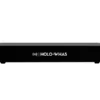

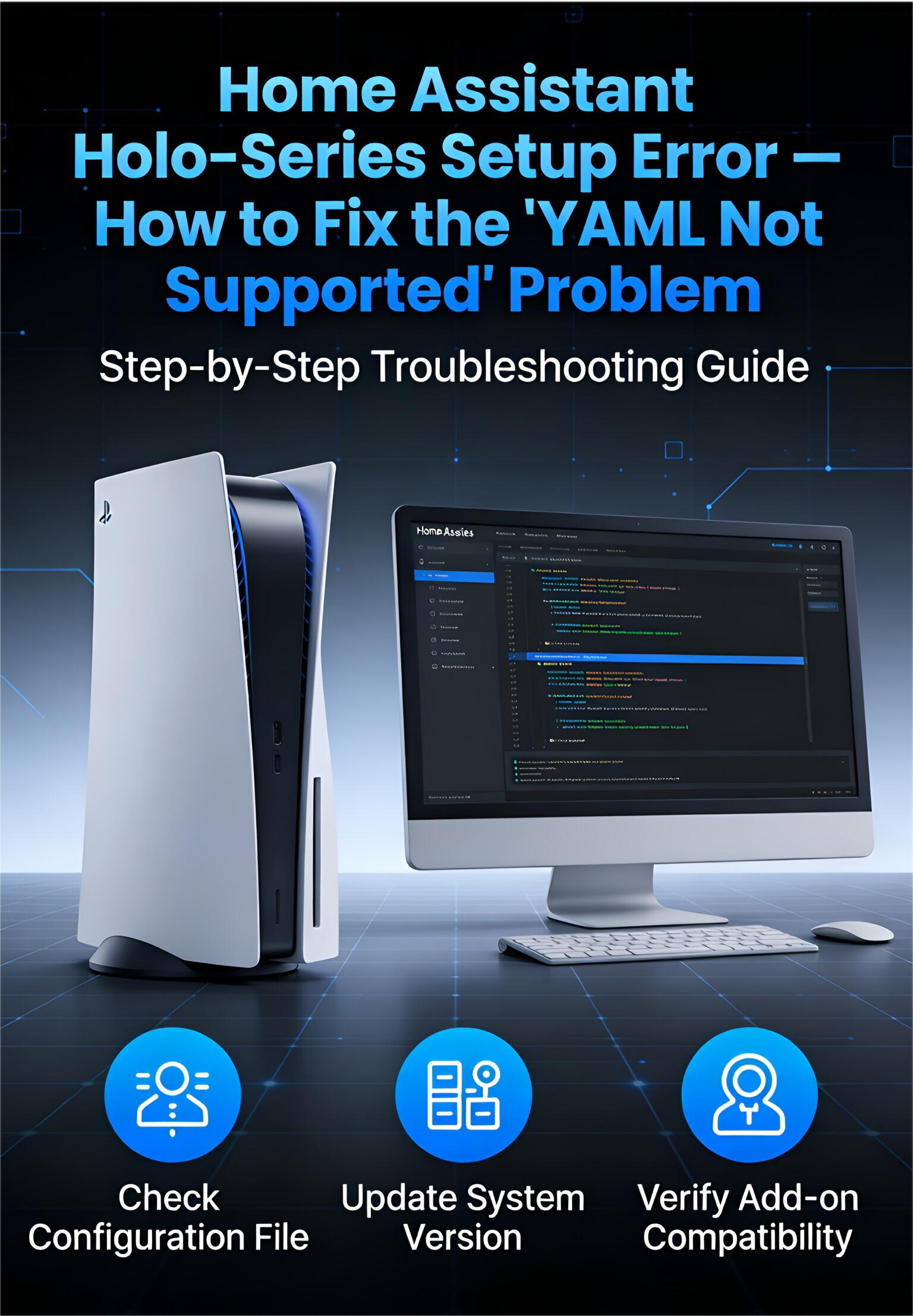
Setting up custom integrations in Home Assistant (HA) is the key to unlocking the full potential of your smart home, especially for advanced devices like the HOLOWHAS MAX audio/streaming unit.
However, integrating these custom components can sometimes lead to frustrating errors. If you’ve recently tried to configure the holoseries integration and ran into the logs shown below, don’t worry—the solution is straightforward!
The Problem Explained: A Configuration Shift
Your Home Assistant logs show two related errors that point to a core conflict in the setup process.
When you encounter the following error message, it signals that you are using an incorrect configuration method:

1. The Explicit Conflict:The log clearly states: “The ‘holoseries’ integration does not support YAML setup, please remove it from your configuration”.
When the system cannot process the YAML configuration, you will also see the second error, confirming that the integration failed to launch:

2. The Consequence:Because the system cannot execute the YAML setup function, it throws a secondary error: “Setup failed for custom integration ‘holoseries’: No setup or config entry setup function defined.”
The Diagnosis: The holoseries integration has been updated to use Home Assistant’s modern Config Flow (UI-based configuration) and no longer relies on the traditional configuration.yaml file. Your residual YAML code is confusing the system.
The Solution Guide: Configuring via the UI
To resolve this, you must completely remove the old, unsupported configuration and then re-add the integration through the Home Assistant interface.
Step 1: Remove the Invalid YAML Entry
This step ensures the system stops attempting to execute the old configuration.
- Access your Home Assistant configuration directory using your preferred tool (e.g., VS Code Server, File Editor add-on, or Samba Share).
- Locate and open your main configuration file, yaml.
- Delete the entire code blockrelated to holoseries (it will usually start with the line holoseries:).
- Saveand close the file.
Step 2: Restart the Home Assistant Service
A full restart is essential to clear the failed setup attempts from the system memory.
- Go to Settings> System > Hardware (or Developer Tools > YAML).
- Select Restart.
Step 3: Add the Integration Through the User Interface
Once the system is clean, you can add the integration properly using the modern method.
- Navigate to Settings> Devices & Services.
- Click the “Add Integration”button (usually in the bottom right corner).
- Search for the holoseriesintegration (it might appear as “Holo-Series Streamer”).
- Click the integration and follow the prompts. You will typically be asked to enter the HOLOWHAS MAXdevice’s IP Address and Port (default is usually 80) to complete the setup.
Conclusion
By removing the unsupported YAML code, you allow Home Assistant to correctly initialize the holoseries integration using the Config Flow UI. Once complete, your HOLOWHAS MAX device should automatically appear, ready for you to build automations around its advanced audio and streaming features!
For more information, visit multizone-audio.com